

Key type: use a private key (see Create an API Key). It’s entered once in Strapi’s admin Settings page, stored server-side, and every Autorender API call happens from the Strapi backend — it never reaches the public-facing site. Admins with the Settings: Change permission can view and copy the key from the Settings page, since they could already read it directly from the database.
@autorender/strapi adds an Autorender-powered media library to your Strapi admin panel. Browse your Autorender folders and files without leaving Strapi, import assets by reference with a single click, and optionally route every new Strapi upload straight to Autorender instead of local disk storage.
How does it work?
- Autorender Media Library page — browse your Autorender folders and files, and either import existing assets into Strapi’s own Media Library, or upload a new file straight to Autorender.
- Import by reference — importing does not copy or re-host file bytes. Strapi stores the Autorender CDN URL directly in the Media Library entry.
- Upload provider (optional) — when enabled, new files uploaded anywhere in Strapi (Content Manager, Media Library, anywhere) are sent to Autorender instead of Strapi’s default storage.
Prerequisites
- A Strapi project (v5 or later)
- Node.js 18 or later
- Administrator access to your Strapi instance
- An Autorender workspace and a private API key — see Create an API Key
1. Install the plugin
2. Configure the plugin
Open Settings → Autorender in the Strapi admin panel.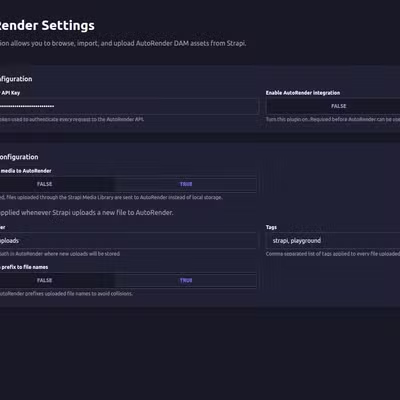
The Autorender Settings page in the Strapi admin panel.
Click Save.
The API base URL is fixed and not configurable — Autorender’s REST API only has one endpoint, so there’s nothing to set.
3. (Optional) Route new uploads to Autorender
Still on Settings → Autorender, under Upload Configuration:4. Browse, import, and upload Autorender assets
Open the Autorender page from the main sidebar.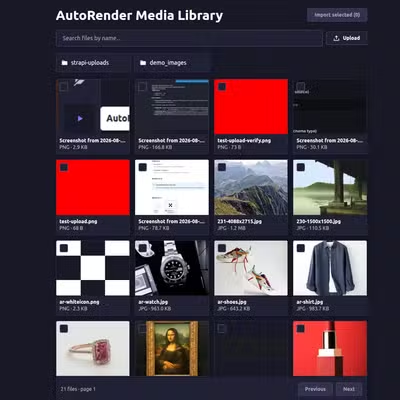
Browsing Autorender folders and files from the Strapi admin panel.
- Use the folder cards or the search box to find the assets you want. Folders can nest — clicking one shows its subfolders and files, with a breadcrumb trail to navigate back up.
- Select one or more assets by clicking a tile or its checkbox, then click Import selected to create the corresponding entries in Strapi’s own Media Library.
- Or click Upload to add a new file straight to Autorender without leaving Strapi — it uploads into whichever folder you’re currently browsing.
5. Grant access to other roles (optional)
By default, only Super Admins can see and use the Autorender pages. To grant access to other admin roles, go to Settings → Administration Panel → Roles, pick a role, and enable the permissions you want under the Autorender section.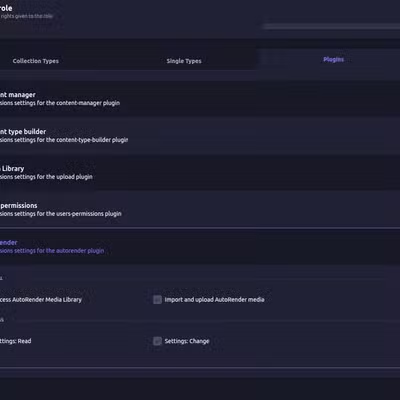
Autorender permissions in a Strapi admin role.
6. Allow Autorender’s CDN in your CSP
config/middlewares.js only controls the Content Security Policy on responses Strapi itself serves — the admin panel and Strapi’s own API. To let the admin panel load images and video from Autorender’s CDN, extend it there:
config/middlewares.js
connect-src 'self' is enough — you only need to extend img-src and media-src.
If you render Strapi media from a separately deployed frontend (a Next.js app, a static site, anything that isn’t the Strapi admin panel), this config has no effect on it — that frontend sets its own CSP header, if it sets one at all. Add assets.autorender.io to that frontend’s own img-src and media-src directives instead.
Troubleshooting
- “Autorender integration is disabled” — turn on Enable Autorender integration under Settings → Autorender and save.
- “Missing Autorender API key” — add a valid private key under Settings → Autorender.
- Browsing can see assets, but “Import selected” / “Upload” return a 403 — see step 5: the two Media Library permissions are separate.
- Browsing fails with a generic network error, but works on retry — the plugin retries transient connection failures automatically for browsing (idempotent requests) only. A failure that survives several retries usually means Autorender is unreachable or the API key is invalid.
- An import or upload fails with a generic network error — writes are never retried automatically, since retrying one whose response was lost could create a duplicate asset. Confirm whether it actually completed in Autorender before retrying yourself.
- An imported asset shows as a generic file instead of an image — the plugin infers a usable mime type from Autorender’s metadata, falling back to the file extension. If it still doesn’t render, check that Autorender reports a correct format for that file.
Next steps
Automatic format
Serve AVIF or WebP per browser with
f_auto on the CDN URLs this plugin inserts.Resize and aspect ratio
Control width, height, and fit on every delivery URL.