

c_ parameter. Crop modes decide how the image fits the target dimensions set by w_ and h_, and positioning tokens decide which part of the image survives the crop.
Crop modes act on the target box defined by
w_ and h_. Face and object detection (fo_) find the focal point automatically, so you get consistent thumbnails without picking coordinates by hand.How does it work?
You add a crop mode to the transform segment alongsidew_ and h_. Each mode handles the aspect-ratio difference between the source and the target box differently:
c_crop— cuts the image to the exact dimensions, centering the crop area.c_fill— scales the image to cover the whole box, cropping the overflow.c_fit— scales the image to fit inside the box, keeping the entire image.
- Original image
- Crop (c_crop)
- Fill (c_fill)
- Fit (c_fit)
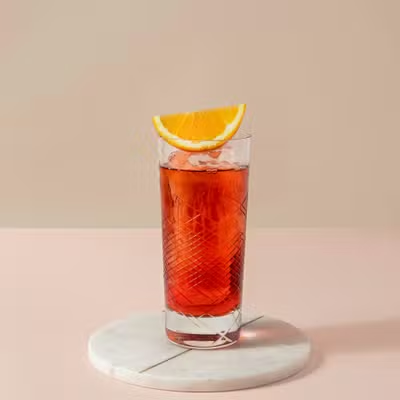
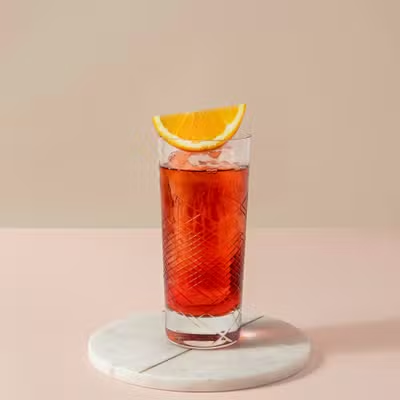
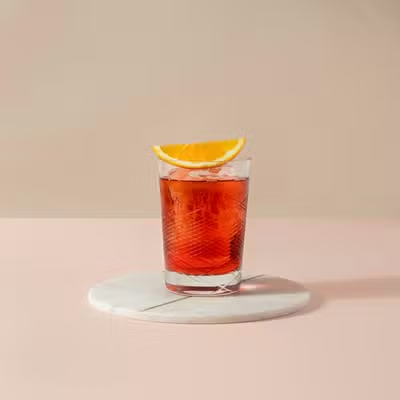
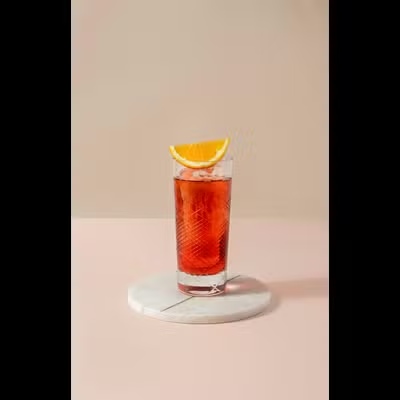
w_360,h_360).
How to position the crop?
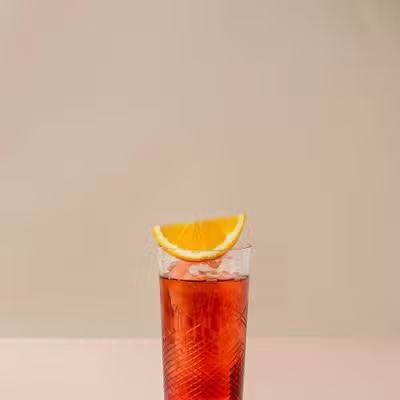
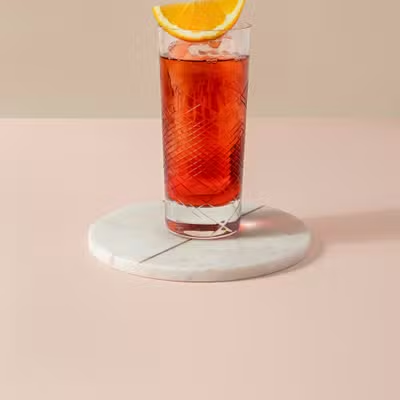
Addp_ to choose which region of the image the crop keeps. The default is center.
- Position top (p_t)
- Position bottom (p_b)
How to crop by content?
Autorender can pick the focal point from the image itself instead of a fixed position. Use these when the subject moves around the frame across a catalog of images.p_entropy and p_attention analyze image content at request time, which makes them useful for generating focus-aware thumbnails automatically.Face detection (fo_face)
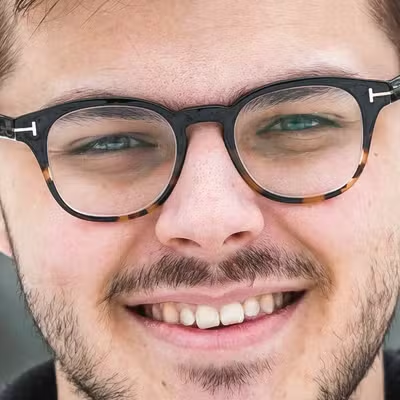
fo_face detects faces and centers the crop on them — ideal for avatars, profile images, and portrait thumbnails.
- Original
- Face detection (fo_face)

Object detection (fo_<object>)
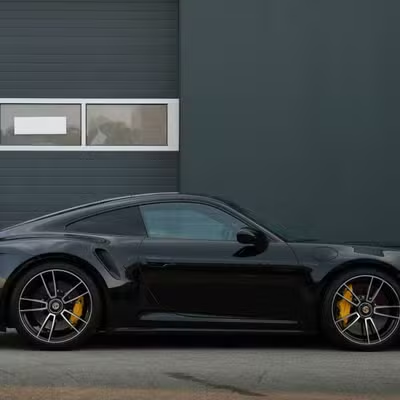
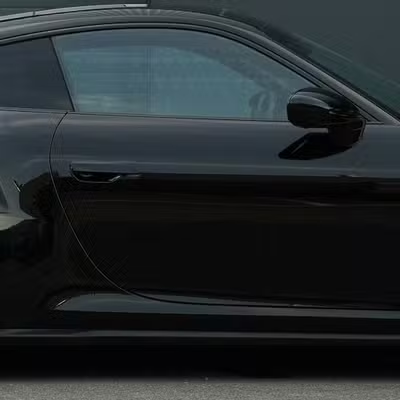
fo_<object> centers the crop on a named object, for example fo_car. Object detection recognizes the standard YOLO model classes such as car, dog, person, and cat.
- Original
- Object detection (fo_car)
Next steps
Resize and aspect ratio
Set the
w_, h_, and ar_ values the crop fits into.Zoom
Magnify a region before cropping to tighten the focus.
Border radius
Round a face crop into a circular avatar.
Recipes
Save crop combinations as reusable
t_ tokens.